Check your printer settings with a calibration page first. Physical printing varies by device; the screenshots below show the actual local tool, not a printer dialog or a finished print.
Choose a sheet layout
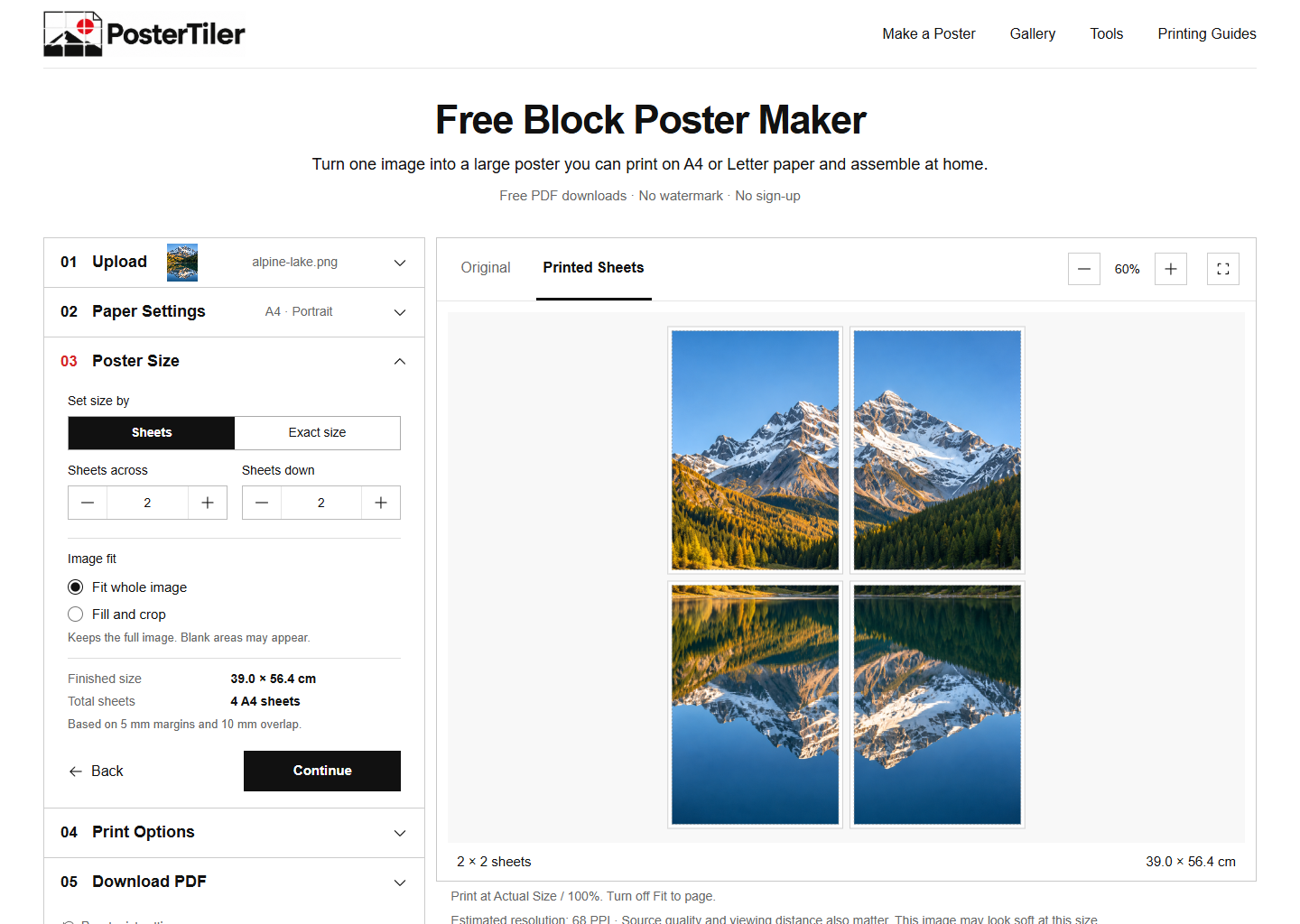
In Poster Size, select Size by Sheets. Set how many pages to use across and down.
Check the finished dimensions
The finished canvas excludes printer margins and counts each overlap only once. Blank space inside a Fit layout is part of the canvas.
Export the PDF
Use the same paper and orientation in the tool and printer dialog.
Print a test first
Start with the calibration page and one adjoining pair. Check scale and overlap before printing every sheet.
Before printing every sheet
Print the calibration page and a representative adjoining pair first. Check scale, image quality and alignment.
Common mistakes
- Counting the overlapping strips twice when measuring the finished poster.
- Switching to a different paper size in the print dialog after creating the PDF.
Frequently asked questions
Does a 2 by 2 layout mean four pages?
Yes. Poster pages are columns multiplied by rows. Calibration and assembly documents are separate downloads.
Why is there white space on some sheets?
Fit keeps the whole image inside the canvas. Exact size can also leave unused space outside the finished canvas on the final row or column. Keep canvas whitespace and trim excess beyond the finished boundary.